
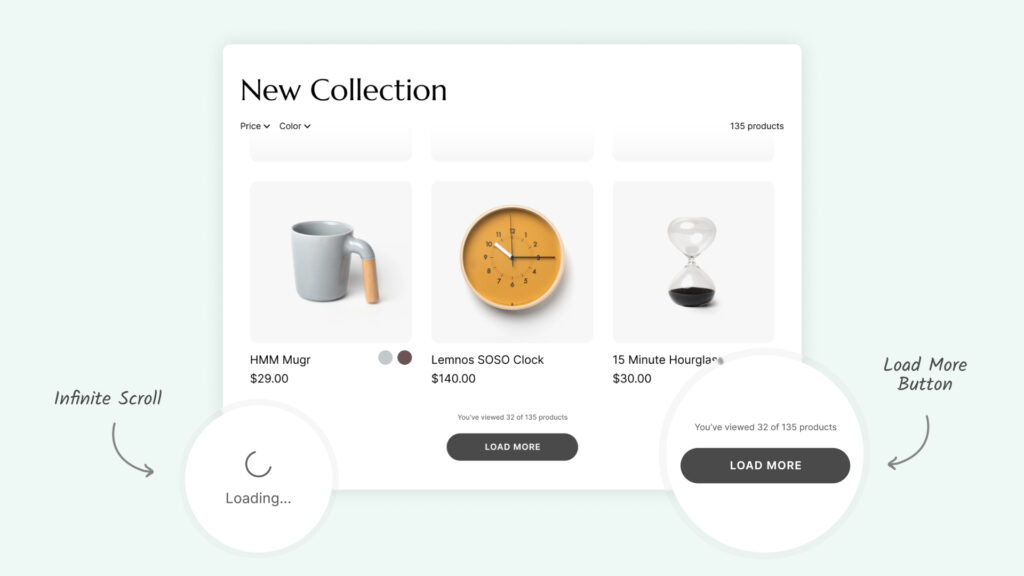
Adding infinite scroll to a Shopify store used to require hiring a developer or editing theme code. Today, you can do it in under 2 minutes — no code required.
What Is Infinite Scroll on a Shopify Collection Page?
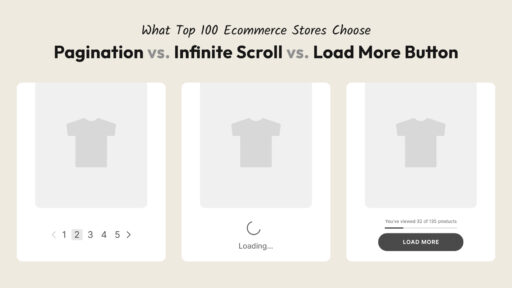
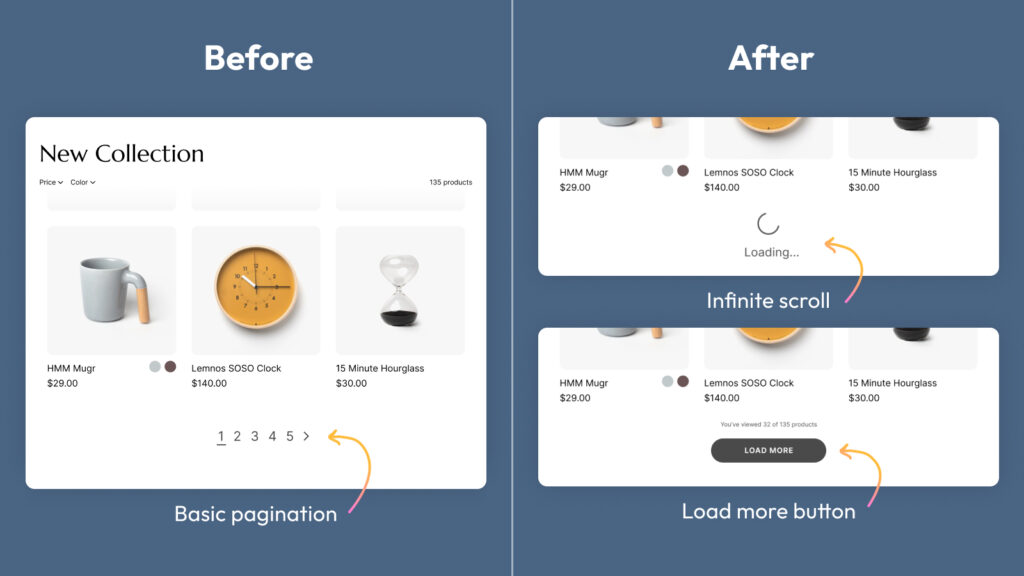
Infinite scroll automatically loads new products as a customer scrolls down your collection page, eliminating the need to click “Next page” or navigate through pagination. Instead of breaking the browsing experience with page reloads, new products appear seamlessly — keeping shoppers engaged and in the flow.
This is the same experience used by industry-leading e-commerce stores and marketplaces around the world.
Why Add Infinite Scroll to Shopify?
Before jumping into the setup, here’s why it matters:
- Better shopping experience — Customers don’t get interrupted by pagination clicks. They browse more products without friction.
- Increased time on site — Continuous content keeps people scrolling longer.
- More products discovered — Products further down the collection get more visibility.
- No developer needed — With the right app, it’s a one-click setup.
How to Add Infinite Scroll to Shopify — Step by Step
Step 1: Install Fab Infinite Scroll
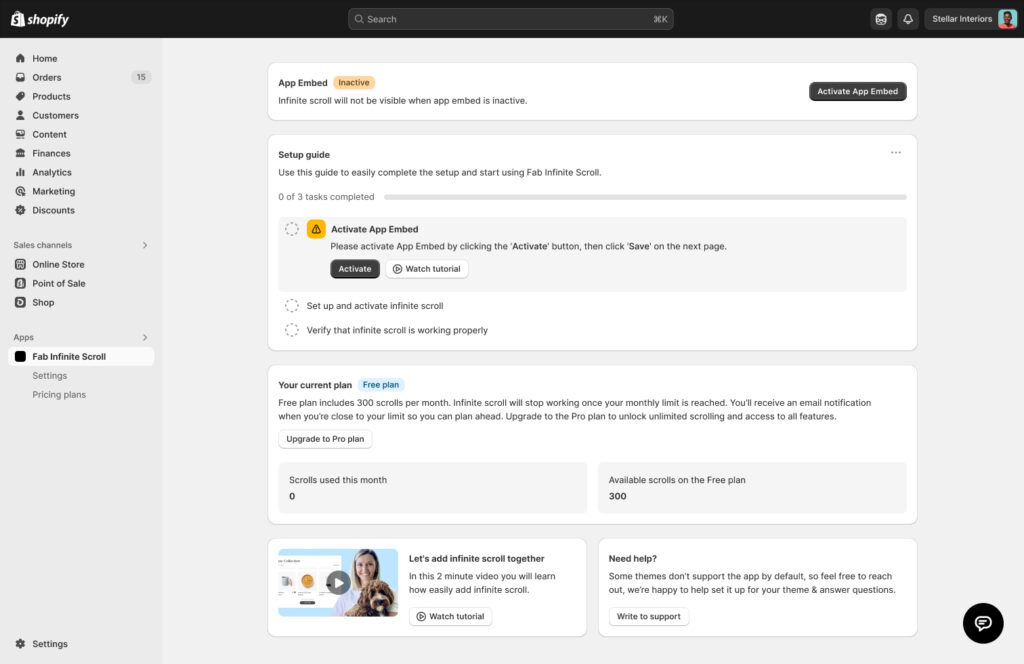
Go to the Shopify App Store and install Fab Infinite Scroll. It’s compatible with most Shopify themes and works automatically without touching any code.
Once installed, you’ll land on the app dashboard inside your Shopify admin.
Step 2: Activate the App Embed
On the dashboard, you’ll see a setup guide with 3 tasks. The first task is to Activate App Embed.
Click the Activate button — this opens your Shopify theme editor where you’ll enable the app embed. Click Save. That’s it for this step.
Without activating the App Embed, infinite scroll will not appear on your storefront even if everything else is configured.
Step 3: Choose Your Display Style
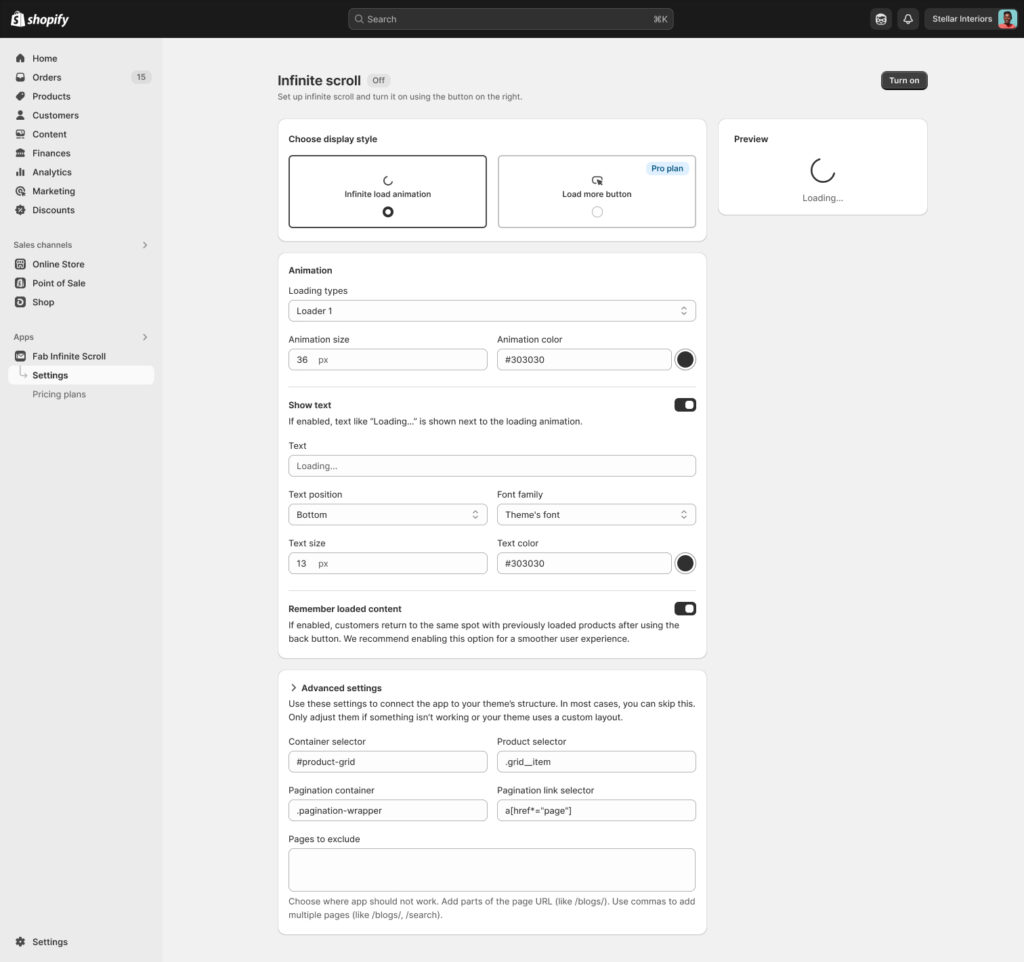
Go to Settings inside the app. You’ll see two display options:
Option A — Infinite Load Animation
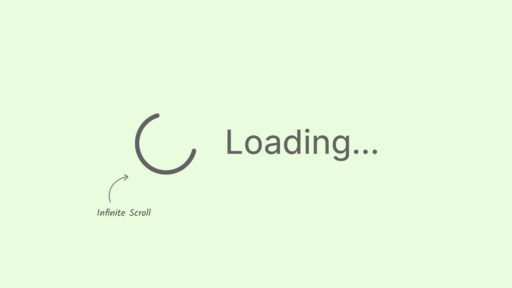
New products load automatically as the customer scrolls. A loading animation (spinner, dots, pulse, or wave) appears at the bottom while products are fetching.
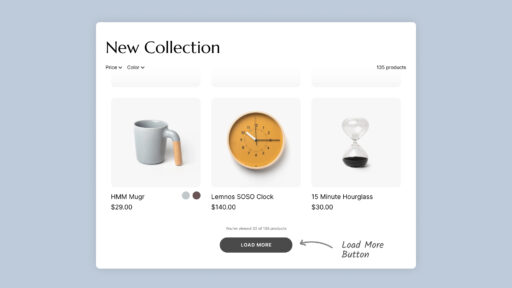
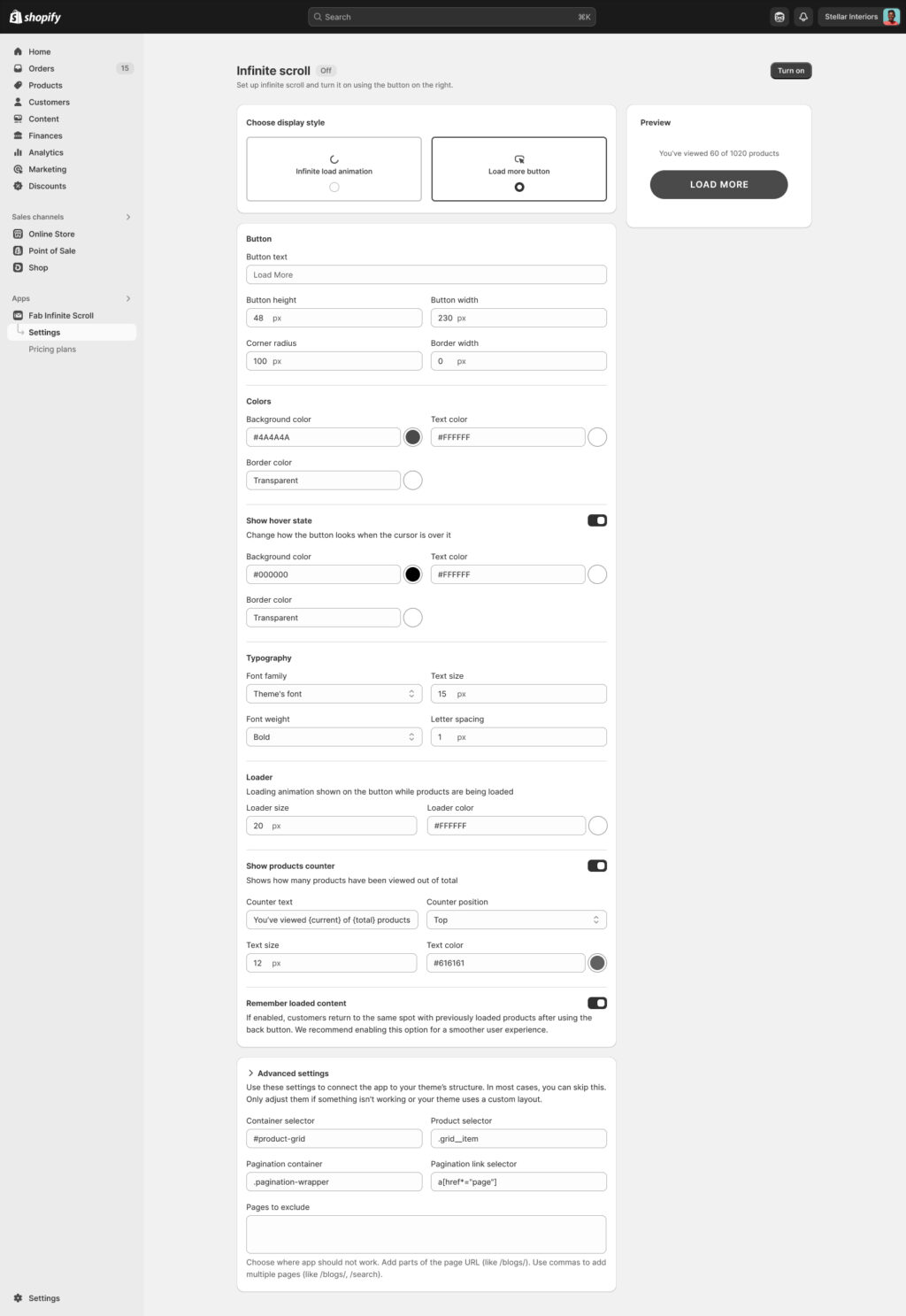
Option B — Load More Button (e-com industry leaders’ choice)
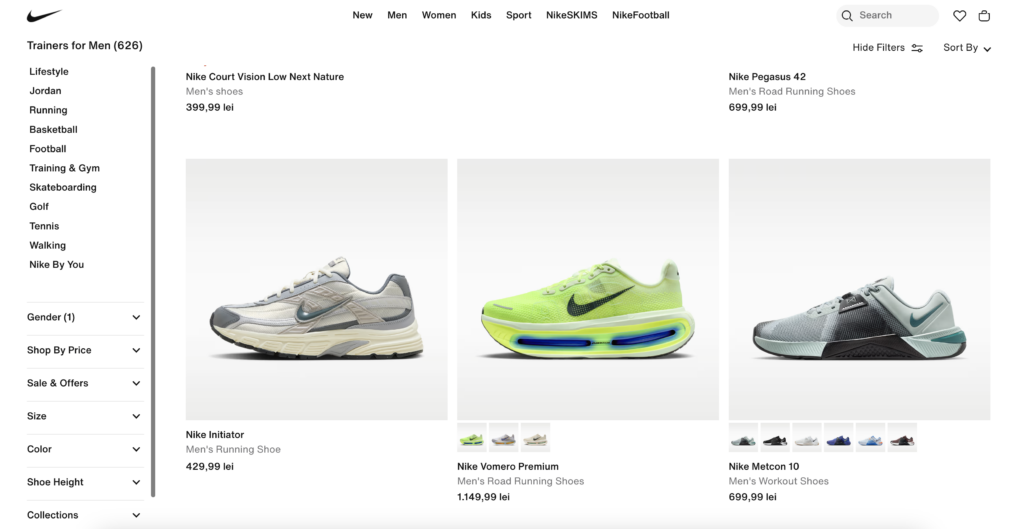
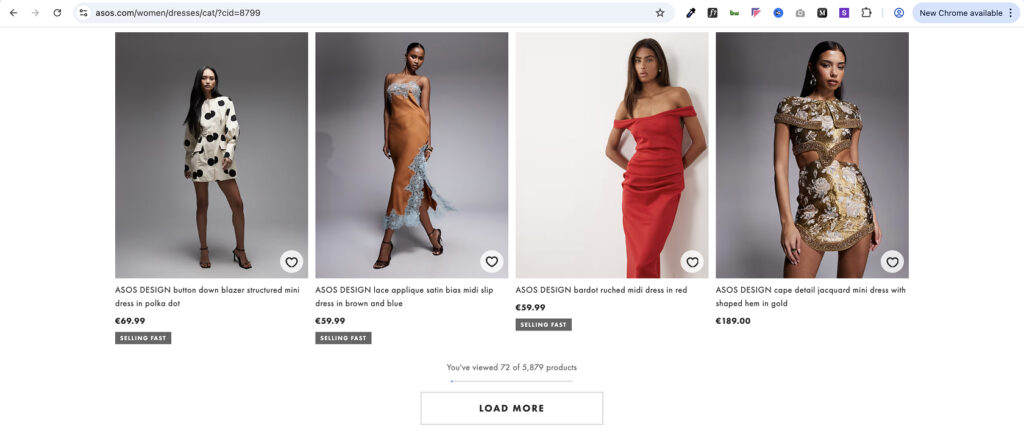
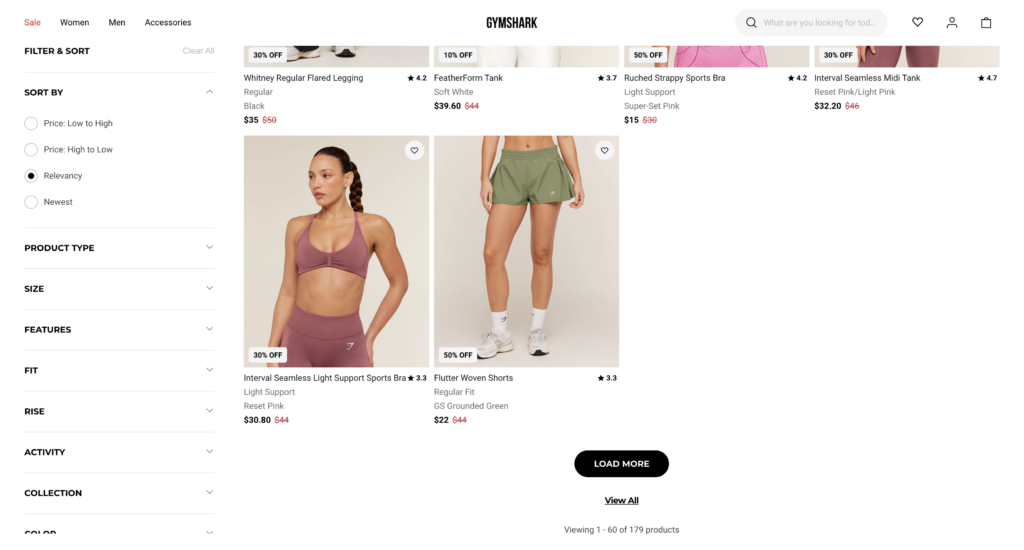
A “Load More” button appears at the bottom of the collection. Customers click it to load the next batch of products. This is the industry standard — used by major e-com brands like ASOS and Gymshark — because it gives customers full control over their browsing experience.
Select the style that fits your store best. You can preview it live in the Preview panel on the right.
Step 4: Customize
Match the feature to your brand:
For Infinite Scroll animation:
- Choose a loader style: Spinner, Dots, Pulse, or Wave
- Set animation color (hex code or color picker)
- Optionally show “Loading…” text — choose position (bottom, top, right, left) and font
For Load More button:
- Set button text (e.g. “Load More”, “Show More Products”, “See More”)
- Adjust button height, width, and corner radius
- Set background color, text color, and border color
- Configure hover state colors
- Choose font family, size, weight, and letter spacing
Step 5: Enable the Products Counter for Load More button (Optional but Recommended)
Turn on Show products counter to display a message like:
You’ve viewed 32 of 135 products
This gives customers a clear sense of progress and encourages them to keep browsing. You can customize the counter text, position (top or bottom), font size, and color.
Step 6: Enable Remember Loaded Content (Recommended)
Turn on Remember loaded content. When this is active, if a customer clicks on a product and then goes back to the collection page, they’ll return to exactly where they were — with all previously loaded products still visible.
Without this, customers are sent back to the top of the first page, which is a frustrating experience.
Step 7: Turn It On
Click the Turn on button in the top-right corner of the Settings page. The status will change from Off to Live.
Your infinite scroll is now active on your Shopify collection pages.
Advanced Settings (For Custom Themes)
Most Shopify themes work automatically. If your theme uses a non-standard layout, ot it is a legacy theme you can configure it with advanced settings. If you’re unsure about these, the support team will help you set it up for your specific theme.
Frequently Asked Questions
Does infinite scroll work with all Shopify themes?
It works automatically with most themes. For custom or headless themes, the advanced settings or a quick support chat can get it working.
Can I use a Load More button instead of auto-scroll?
Yes. The Load More button is available on the Pro plan and is the preferred style for many stores — it gives customers control and is the industry standard used by major e-commerce brands.
Can I preview how it looks before publishing?
Yes. The Settings page includes a live preview panel so you can see exactly how your button or animation will look before turning it on.
Summary
Adding infinite scroll to your Shopify collection page takes about 2 minutes:
- Install Fab Infinite Scroll from the Shopify App Store
- Activate App Embed in your theme
- Choose your display style (infinite scroll or load more button)
- Customize to match your brand
- Enable the products counter and remember loaded content
- Turn it on
No code. No developer. No hassle.