
How To Add Infinite Scroll on Shopify

Pagination forces shoppers to stop, click, and wait between every page of products. Infinite scroll removes that friction entirely – customers keep browsing without interruption, which means they see more products, stay longer, and are more likely to buy. Brands like Nike, Alo Yoga, and Havaianas already use it on their collection pages for exactly this reason.

In this guide, we’ll cover the three ways to add infinite scroll to Shopify, and walk through the fastest one step by step.

Your options

Custom code. This looks like the cheapest route, but it’s the one most likely to cause headaches. Shopify updates its themes and platform regularly, and hand-written scroll code tends to break when that happens – leaving you back at square one, digging through liquid files to fix it. Custom code also skips SEO optimization by default, sometimes doesn’t work reliably across browsers or themes to begin with, and won’t include UX details shoppers expect, like remembering how far they scrolled so they land back in the right spot when they hit “back.”

Hiring a developer. More reliable than DIY code, but it comes with its own costs: time to find someone trustworthy, an hourly rate, and the same maintenance problem – when a theme update breaks your scroll again, you’re back in their queue. There’s also no guarantee they’ll build in proper SEO handling unless you specifically ask (and pay) for it.

An app.
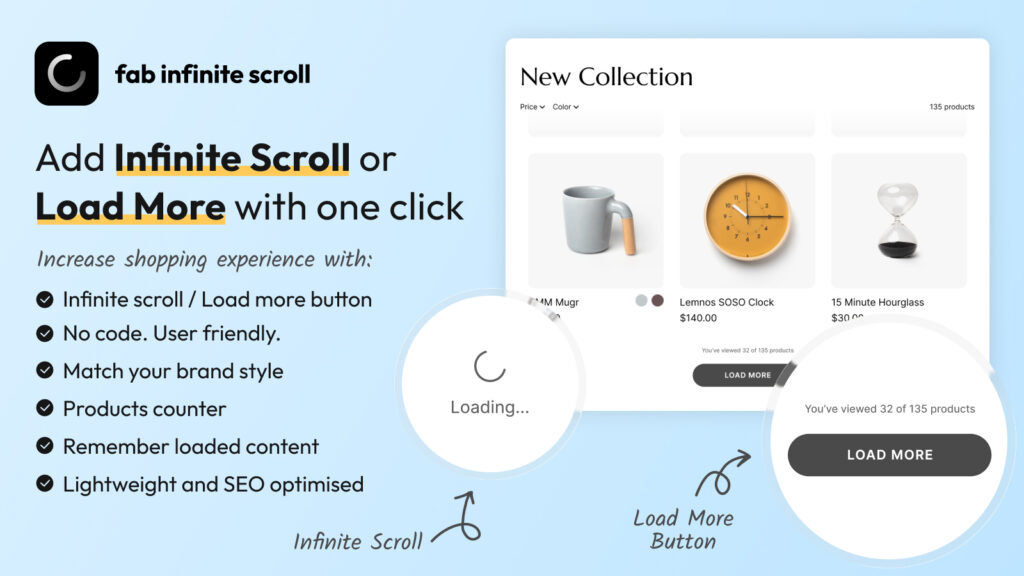
This is the fastest and lowest-maintenance option. A dedicated app like Fab Infinite Scroll is inexpensive, includes support, ships with SEO optimization and UX features already built in, and takes about two minutes to set up. Updates and compatibility fixes are handled on the app side, so you don’t have to think about it again.

fab-infinite-scroll-app

How to set it up with Fab Infinite Scroll

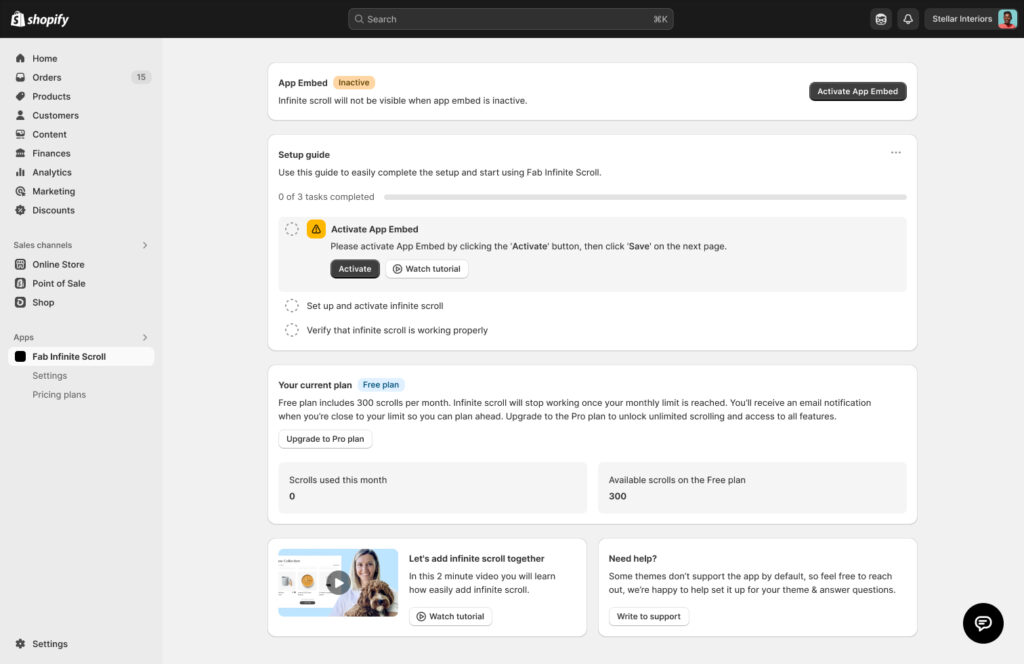
1. Install Fab infinite scroll app and Activate App Embed Open the app’s setup guide and click Activate App Embed, then hit Save on the next page. Infinite scroll won’t be visible in your store until this is turned on.

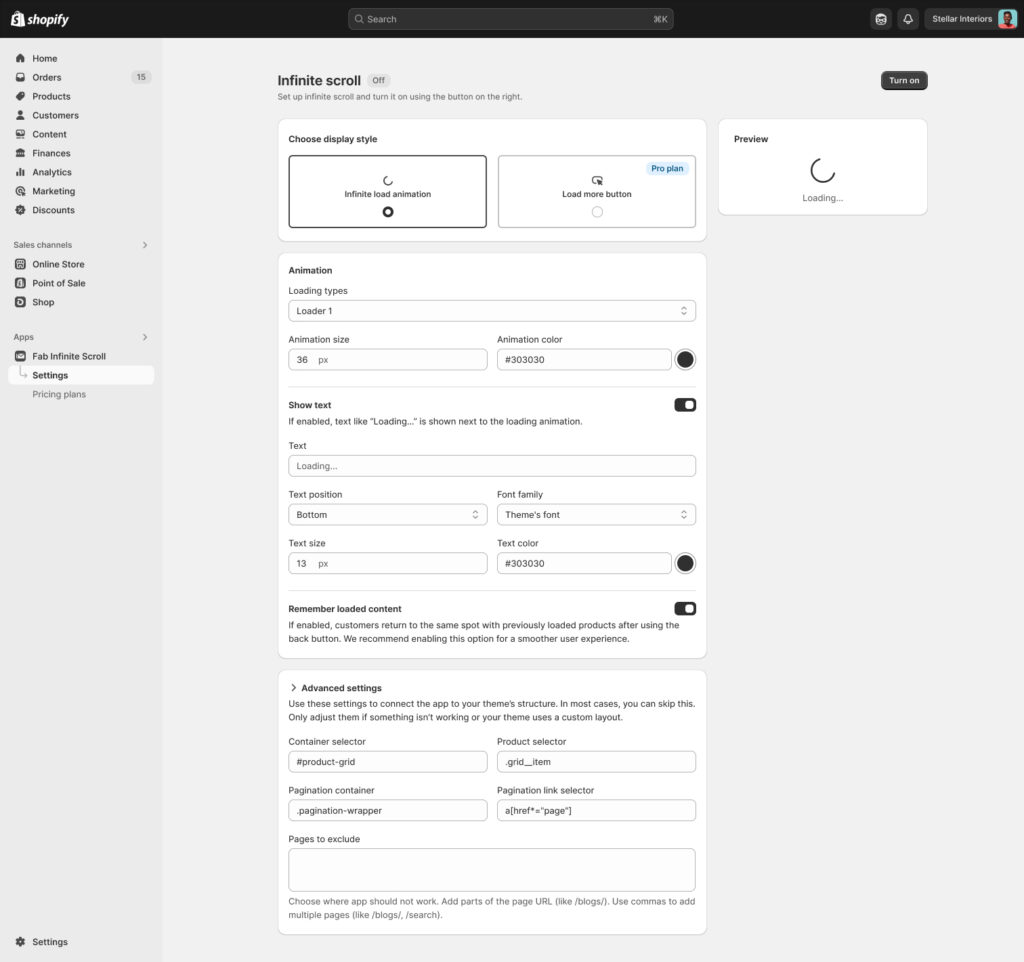
2. Choose your display style Go to Settings and pick either Infinite load animation or Load more button, depending on how you want customers to move through your collection pages.

3. Style it to match your theme Set the animation type, size, and color, and optionally add loading text — all fully customizable so it fits your store’s look.

4. Keep the smart defaults on
Leave Remember loaded content and Search engine friendly pagination switched on. These make sure customers return to the same scroll position after clicking back, and that your collection pages stay indexable by Google.

5. Turn it on and check your store Click Turn on, then open your storefront to confirm everything looks right. Changes can take up to 30 seconds to apply.


That’s it — no code, no developer, no maintenance headaches.

👉 App link: Fab Infinite Scroll

💡 Read: Pagination vs. Infinite Scroll vs. Load More Button: What Top 100 Ecommerce Brands Choose And Why.

5/5 - (1 vote)

Leave a Reply

Your email address will not be published. Required fields are marked *

Choose Platform

We make apps for Shopify and Wix platforms. Select yours.