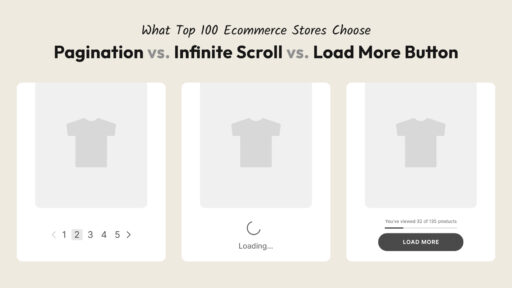

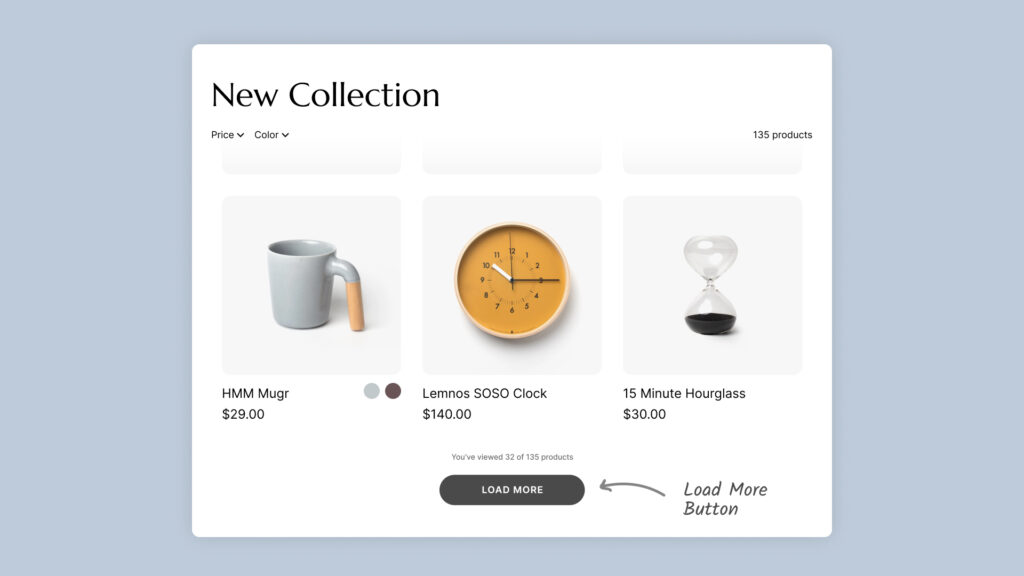
The Load More button is the choice of leading e-commerce brands — and for good reason. Here’s what it is, why it works, and how to add it to your Shopify store without writing a single line of code.
What Is a Load More Button on Shopify?
A Load More button replaces standard pagination on your Shopify collection page. Instead of showing numbered pages (Page 1, Page 2, Page 3…) or links to the next page, customers see a single button at the bottom of the product grid.
When clicked, the button loads the next batch of products directly onto the same page — no full page reload, no navigation. Products simply appear below the existing ones.
Why Major E-Commerce Brands Use Load More Buttons
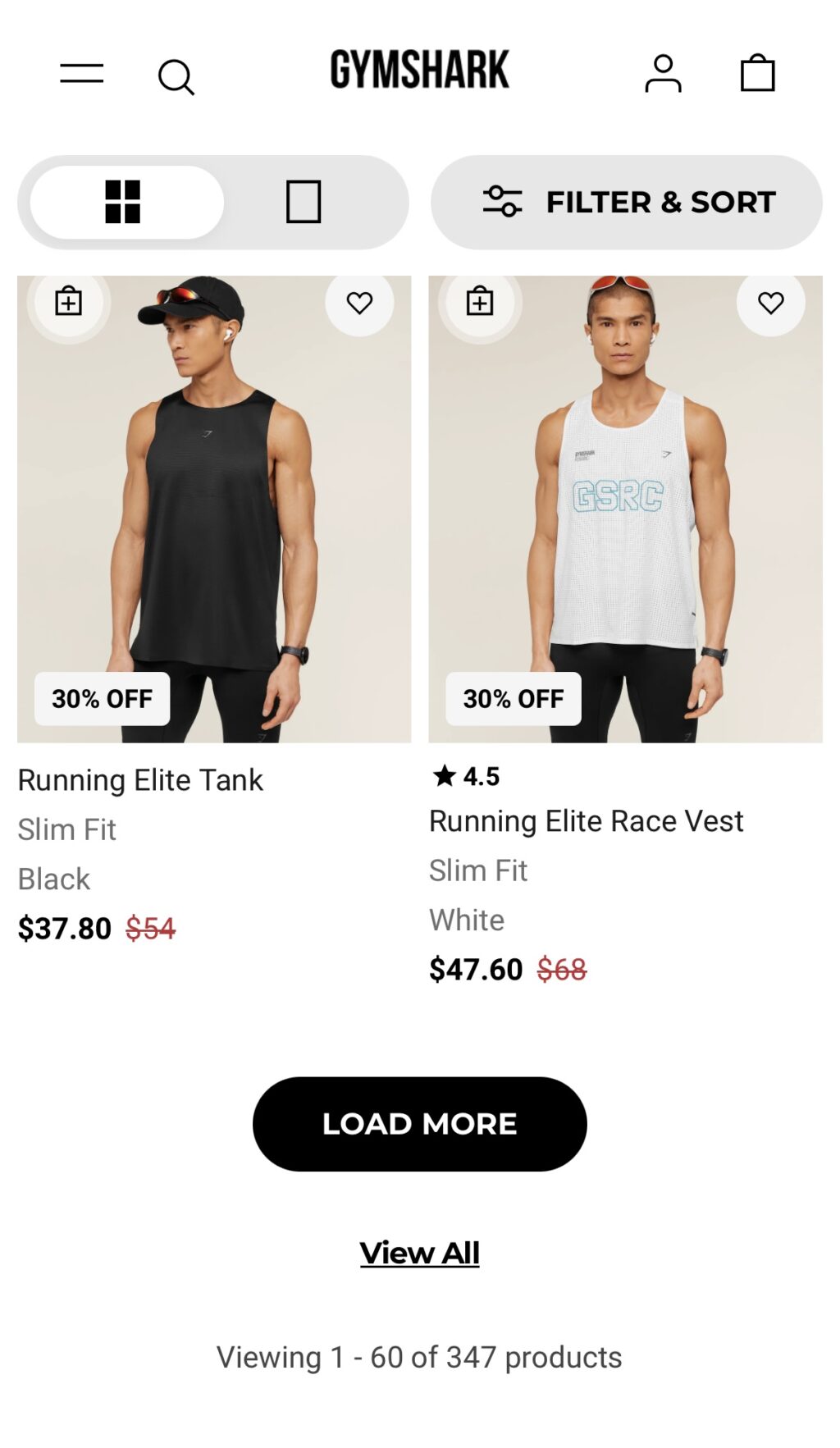
Industry-leading stores like ASOS, Gymshark, Zara, and many Shopify Plus brands default to a Load More button rather than infinite auto-scroll. The reason comes down to control.
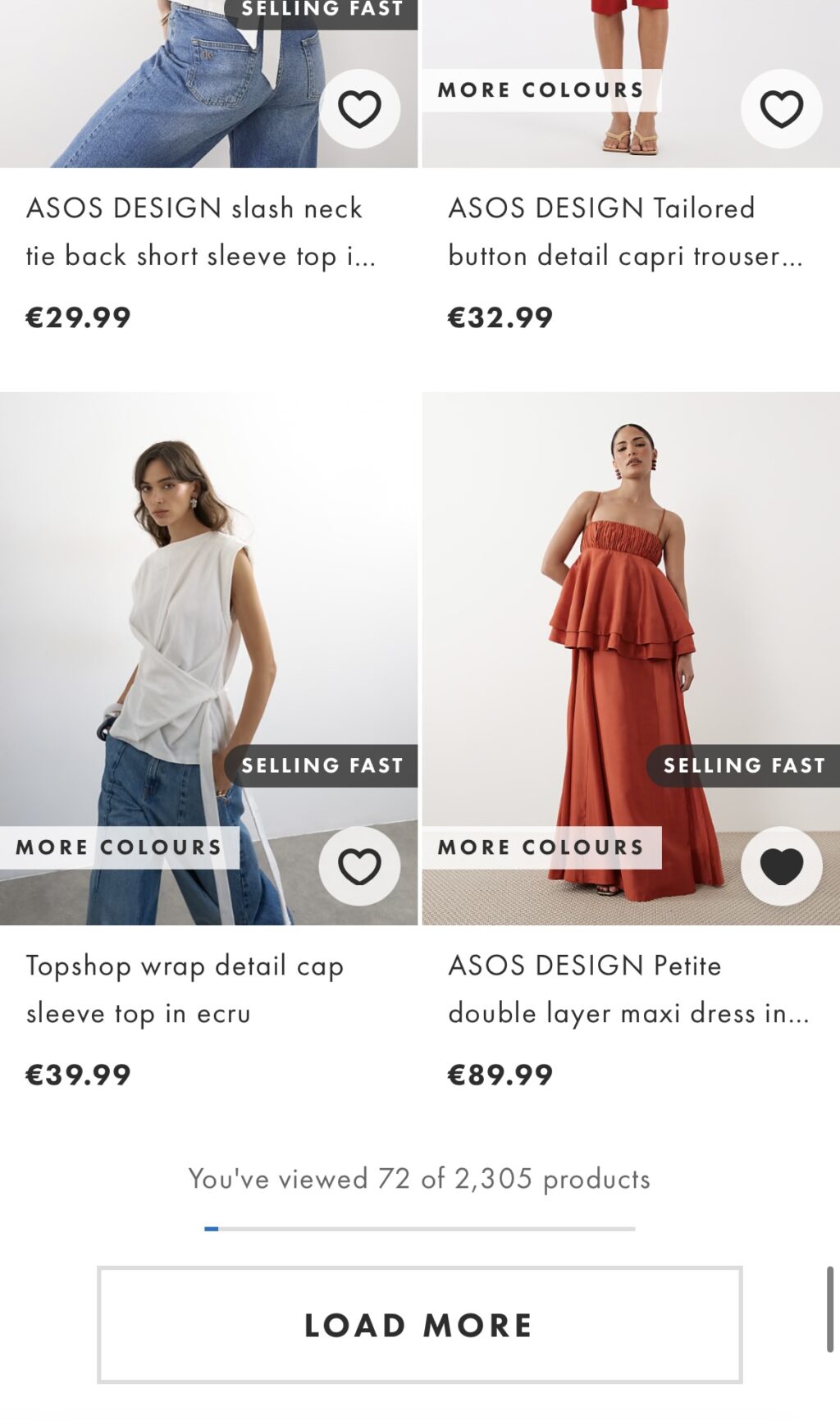
When a customer clicks to load more, they’re actively choosing to keep browsing — that’s a clear signal of interest, not something that happens passively. It also means your footer stays within easy reach. Customers can sign up for your newsletter, check your return policy, or jump to another section of your site without scrolling past an endless feed of products to get there.
How to Add a Load More Button to Shopify — Step by Step
Step 1: Install Fab Infinite Scroll
Fab Infinite Scroll supports both infinite scroll and the Load More button. Install it from the Shopify App Store.
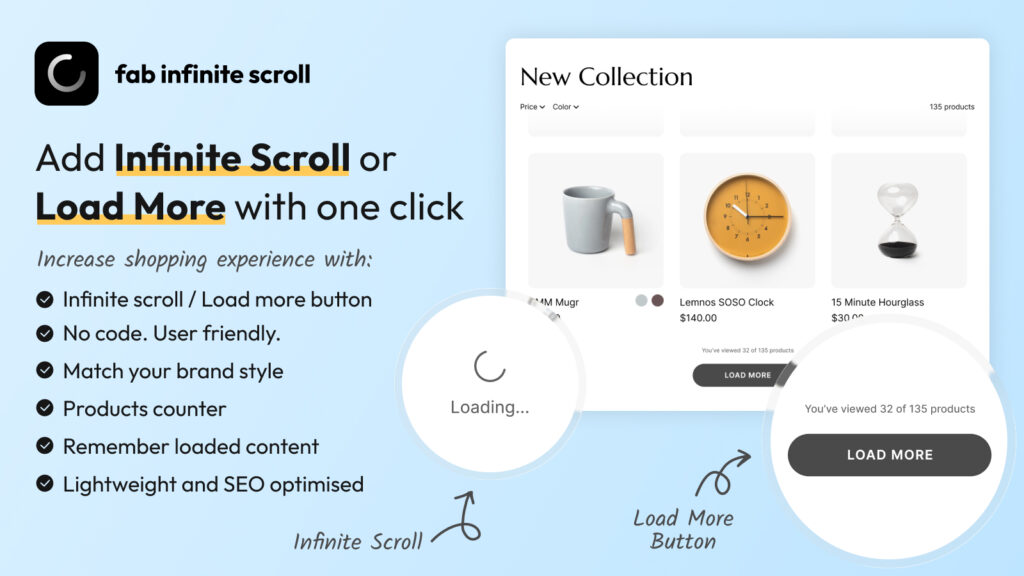
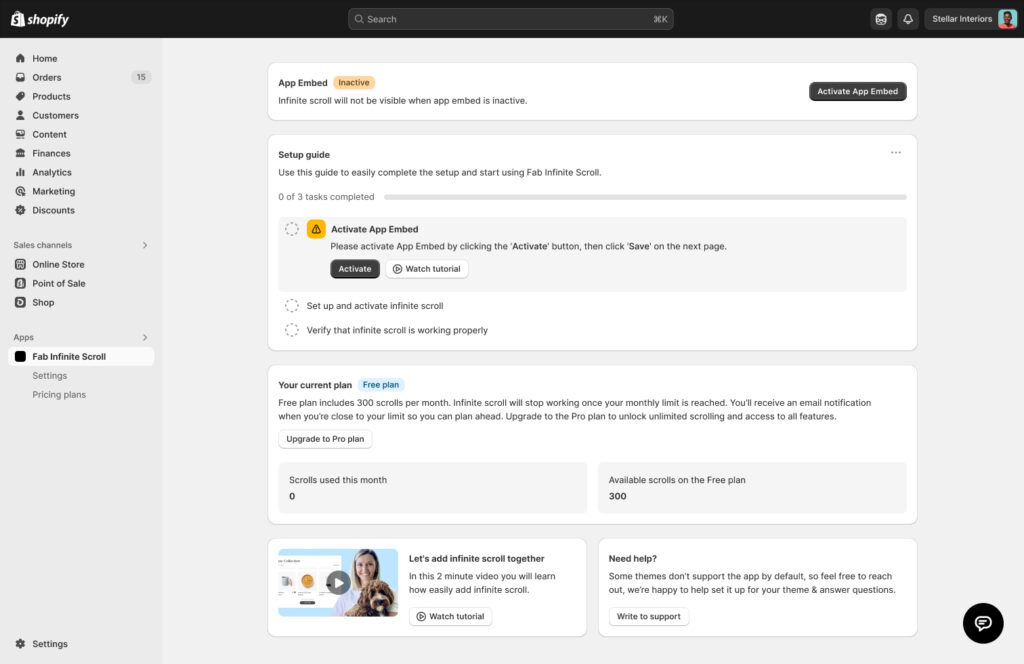
Step 2: Activate App Embed
From the app dashboard, click Activate to enable the App Embed in your theme. Save the theme. This step is required for anything to show on your storefront.
Step 3: Select “Load More Button” in Settings
Go to Apps → Fab Infinite Scroll → Settings.
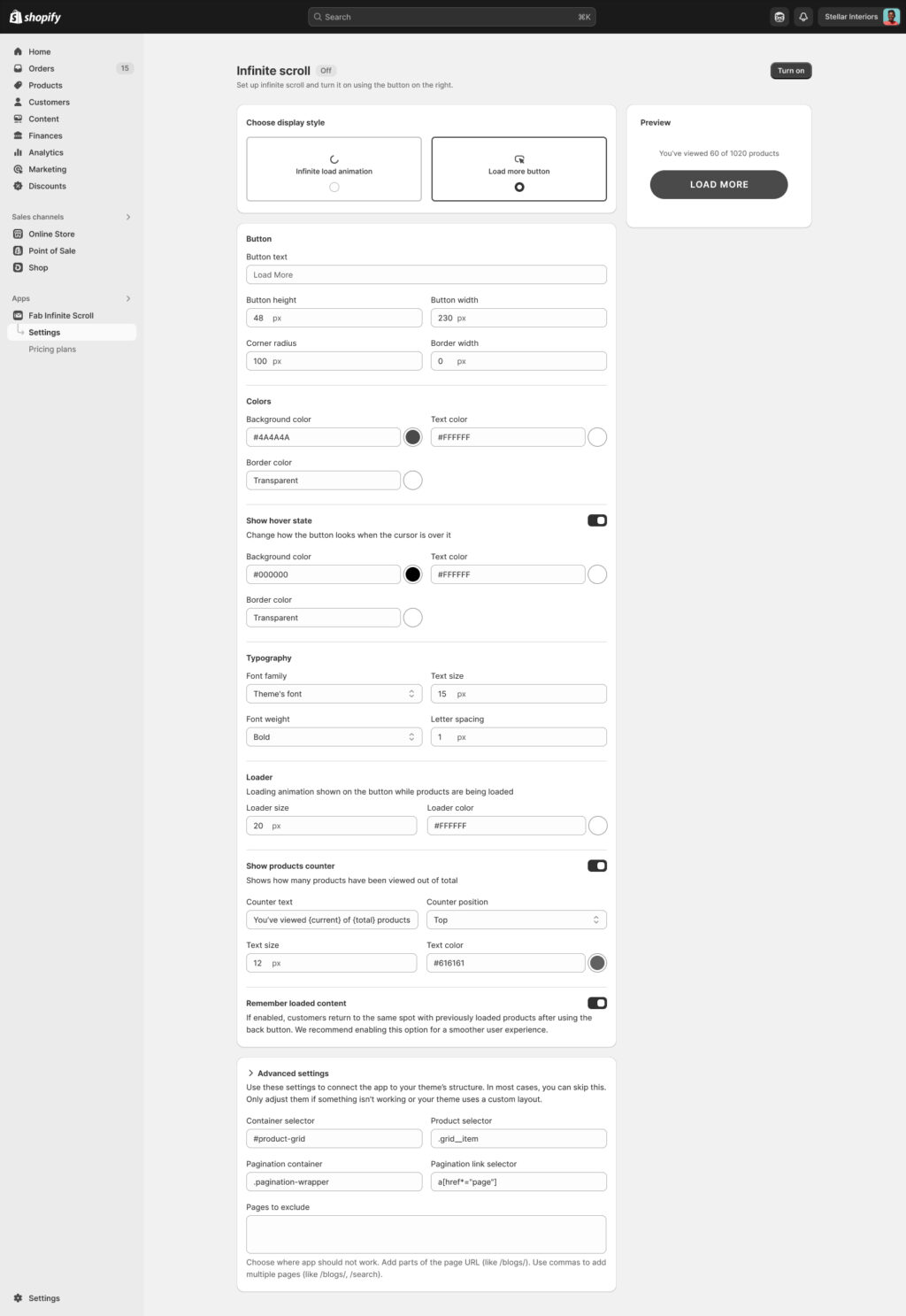
Under Choose display style, select Load more button. The preview panel on the right will update immediately to show you how it looks.
Step 4: Customize the Button
The Load More button has full customization options:
Button text
Change the default “Load More” to anything that fits your brand tone:
- “Show More Products”
- “See More”
- “Load More Items”
- “Discover More”
Button dimensions
- Height (default: 48px)
- Width (default: 230px)
- Corner radius — set to 100px for a fully rounded pill shape, or 0px for a sharp rectangle
Colors
- Background color
- Text color
- Border color and width
Hover state
Enable the hover state toggle to set a different look when a customer’s cursor is over the button. You can change background, text, and border colors independently for the hover state. This adds polish and signals interactivity.
Typography
- Font family (use your theme’s font or set a specific one)
- Text size
- Font weight (Regular, Medium, Bold, etc.)
- Letter spacing
Loader animation on the button
While new products are loading after the click, a small spinner appears inside the button. You can customize:
- Loader size (in px)
- Loader color (should match your button text color for contrast)
Step 5: Set Up the Products Counter
Turn on Show products counter to display progress text above or below the button:
You’ve viewed 32 of 135 products
This is one of the most effective small UX improvements you can make. Customers know where they stand, feel a sense of progress, and are more likely to keep browsing.
Customize:
- Counter text (use
{current}and{total}as placeholders) - Counter position: above or below the button
- Text size and color
Step 6: Enable Remember Loaded Content
When a customer loads 5 batches of products and then clicks into a product detail page, what happens when they press back?
Without this setting: they’re sent back to page 1, top of the list. The loaded products are gone. Frustrating.
With Remember loaded content enabled: they return to exactly the same scroll position, with all previously loaded products still on screen.
This is a significant UX improvement that directly impacts bounce rate and session depth.
Step 7: Turn It On
Click Turn on in the top-right corner. The status changes to Live, and your Load More button is active on all collection pages.
What the Load More Button Looks Like in Practice
Here’s a typical customer journey on a Shopify collection page with a Load More button:
- Customer lands on New Collection — sees 24 products
- They scroll through, find a few they like
- At the bottom, they see: You’ve viewed 24 of 135 products and a LOAD MORE button
- They click — 24 more products appear instantly below, no page reload
- The counter updates: You’ve viewed 48 of 135 products
- They click a product, browse it, press back — return to exactly where they were
Clean. Fast. In control.
Not sure which navigation pattern to choose? We analyzed 100 top ecommerce brands — see what they use →
Frequently Asked Questions
Does the Load More button work on all Shopify themes? Yes, with most standard Shopify themes it works out of the box. Custom themes may require a quick configuration of the CSS selectors — the app’s support team handles this for free.
Can I style the button to match my brand? Fully. You control the text, colors, size, shape, typography, hover state, and loading animation. There’s a live preview inside the app so you can see changes in real time before going live.
Can I show how many products are left to load? Yes. Enable the products counter and configure the counter text to show something like “You’ve viewed {current} of {total} products.”
Summary
The Load More button is the e-commerce industry’s preferred alternative to traditional pagination. It keeps customers on the same page, shows them how many products are left, and removes the friction of navigating between paginated pages.
Adding one to your Shopify store takes less than 2 minutes with Fab Infinite Scroll.